Prove what the machine looked like when it left your yard.
Photo and signature checks at pickup and return. When a renter says the dent was already there, you have the record.
One flow, run twice.
The same checklist at pickup and at return. That is the whole idea, and it is why the two halves line up.
Photograph it at pickup
The screen names one angle at a time and shows one large camera button. It will not move on until that shot is taken, or past the last one until every shot is, so there is nothing for a staff member to remember.
Both parties sign on the phone before the machine leaves.
It goes out on hire
The run is written to the phone as it is captured and uploads the next time the app is open in range. The machine reads as out on hire on every screen, and the only action offered against it is the return.
A second pickup on the same machine is refused by the server, not just hidden.
Compare it at return
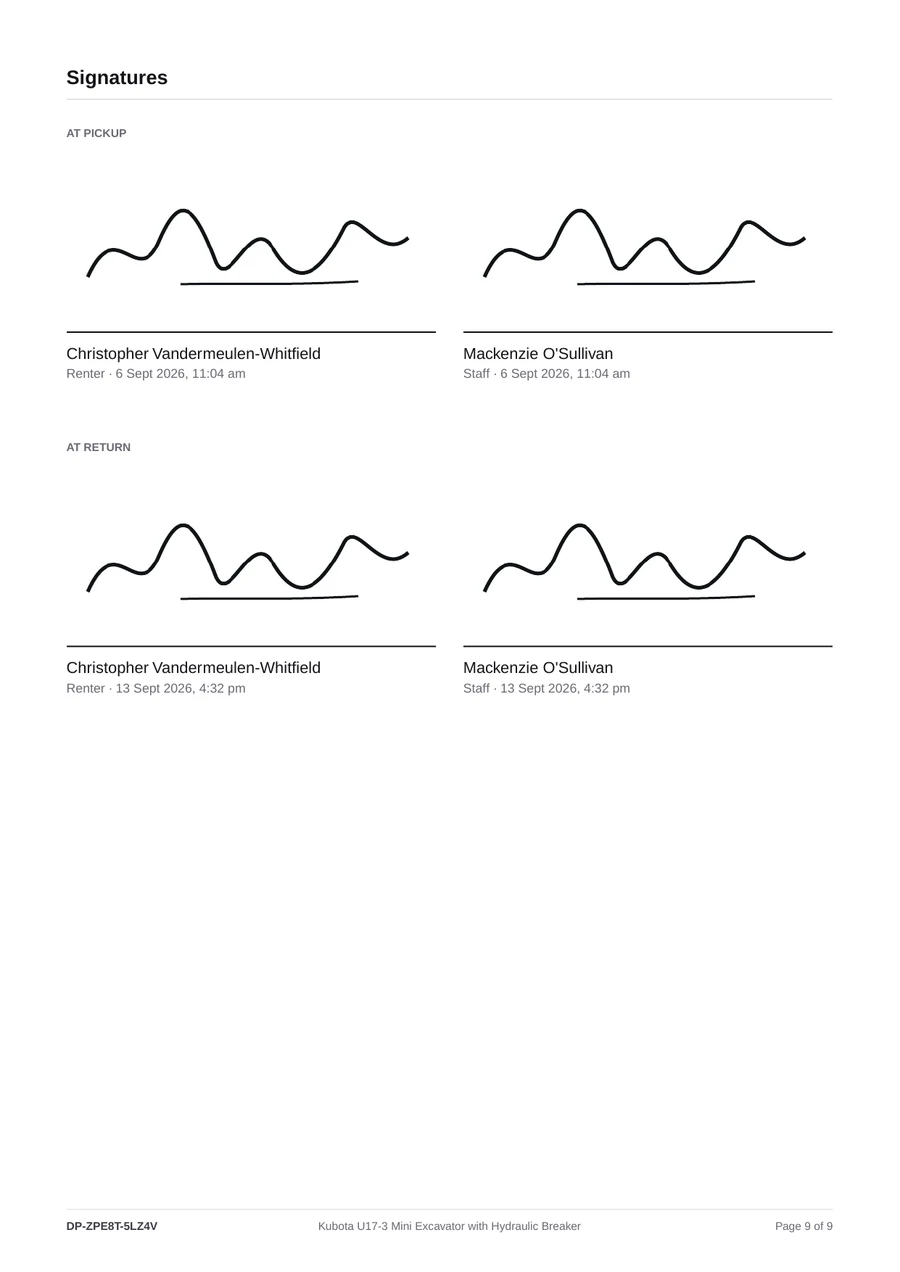
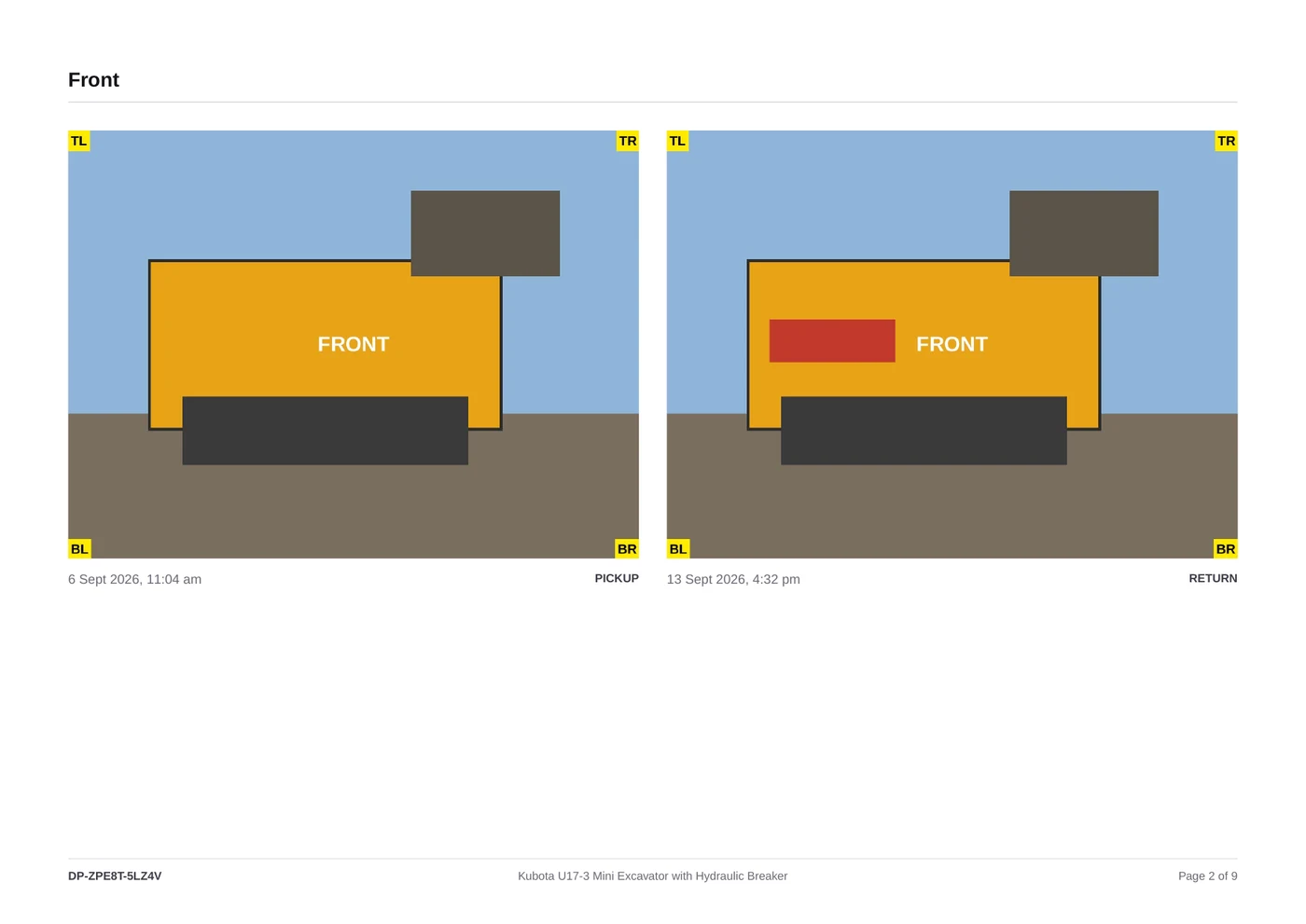
The same checklist runs again, in the same order. The two runs come back as one PDF with each angle set beside itself, so a claim about a dent is settled by the pair of photographs rather than by whose memory is louder.
Damage noted at return is printed on the cover, not buried.
What the renter is handed.
Every field on the cover, named. The hire below is invented. The document around it is the one the code produces.
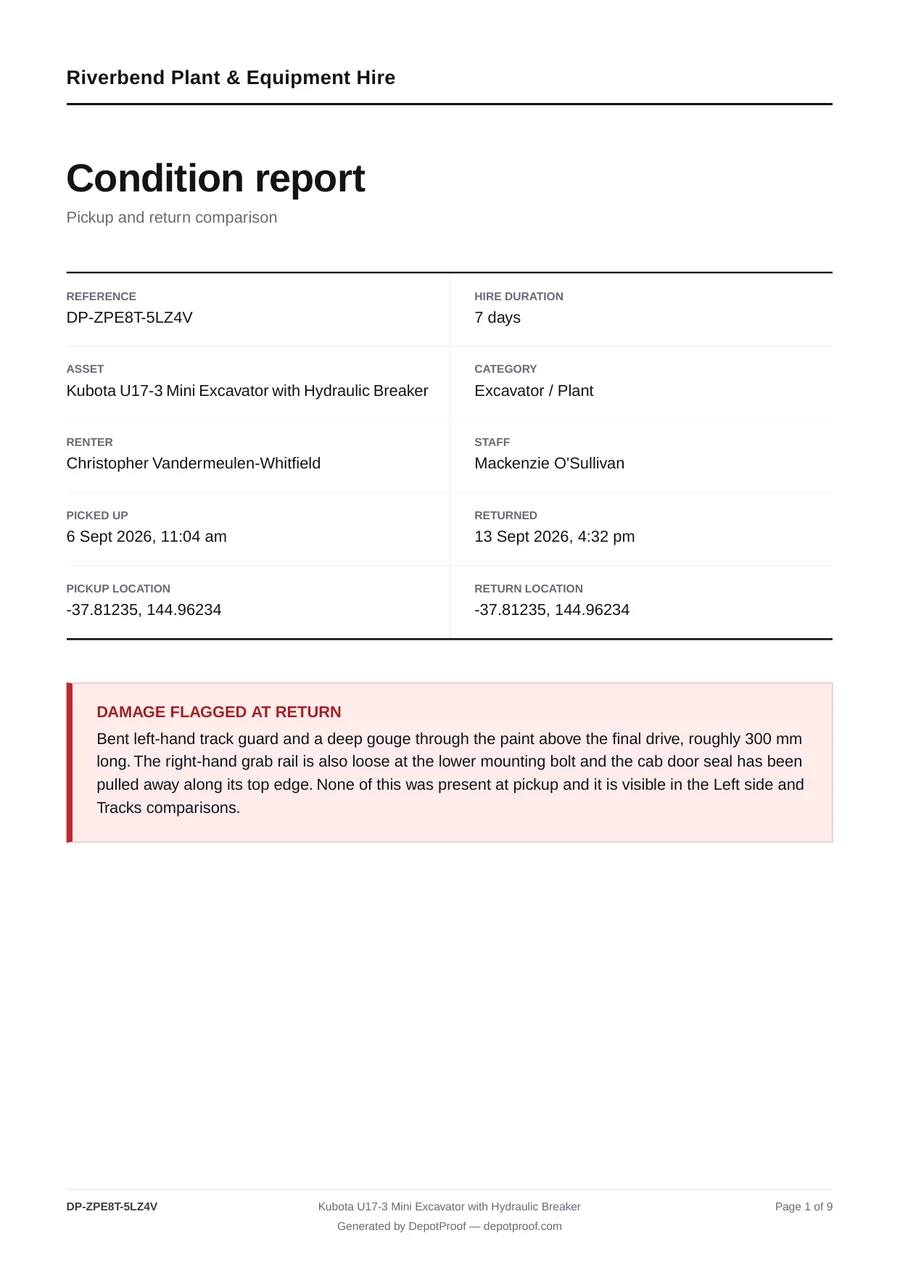
The cover prints these fields in pairs: Reference, Hire duration, Asset, Category, Renter, Staff, Picked up, Returned, Pickup location, Return location.
- 1
The reference
A short code with the ambiguous characters left out, so it survives being read down a phone line and typed back. It names the hire, not the document, so a number quoted the day the machine went out still finds the comparison after it comes back.
- 2
Both timestamps
When the machine went out, when it came back, and the hire duration between them. Every photo on the pages that follow carries its own time as well.
- 3
Where each handover happened
One position at pickup and one at return: where the phone was when that handover was started, not a fix on each photo. If the phone cannot supply one, location declined or no fix indoors, the cell reads “Not recorded” rather than guessing.
- 4
The damage note
Printed word for word from what the staff member typed at return, and only there at all if they ticked the damage box. No tick, no banner.
- 5
Both signature pairs
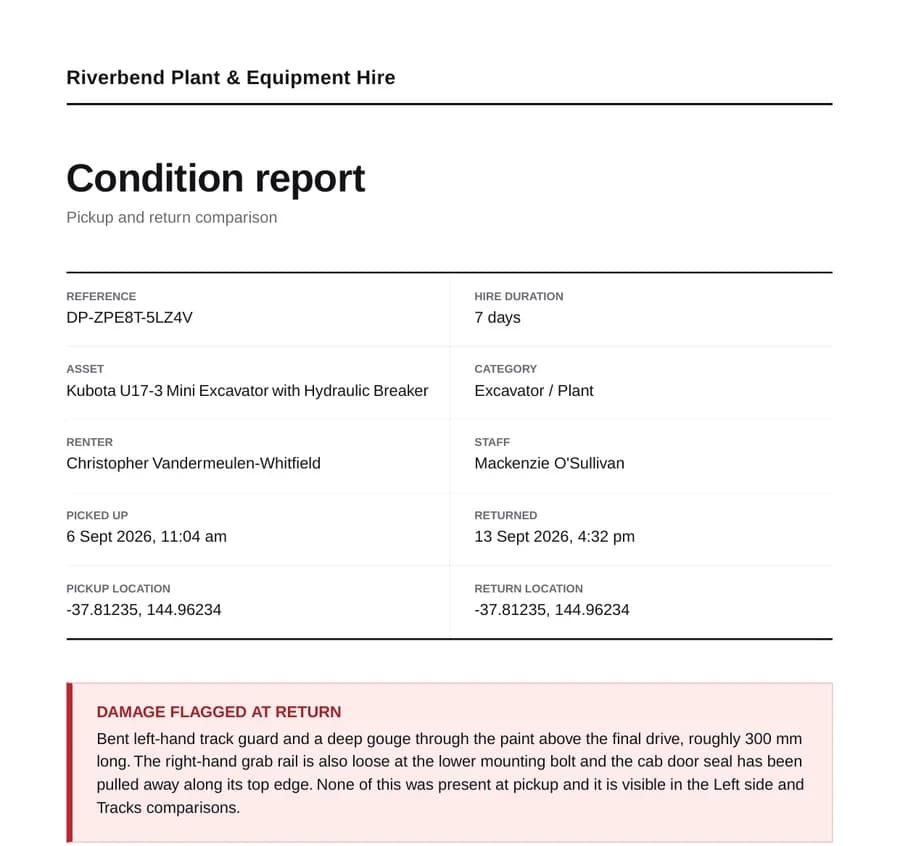
Renter and staff sign at pickup and again at return. All four are on the last page, after one landscape page per angle showing the pickup shot beside the return shot.
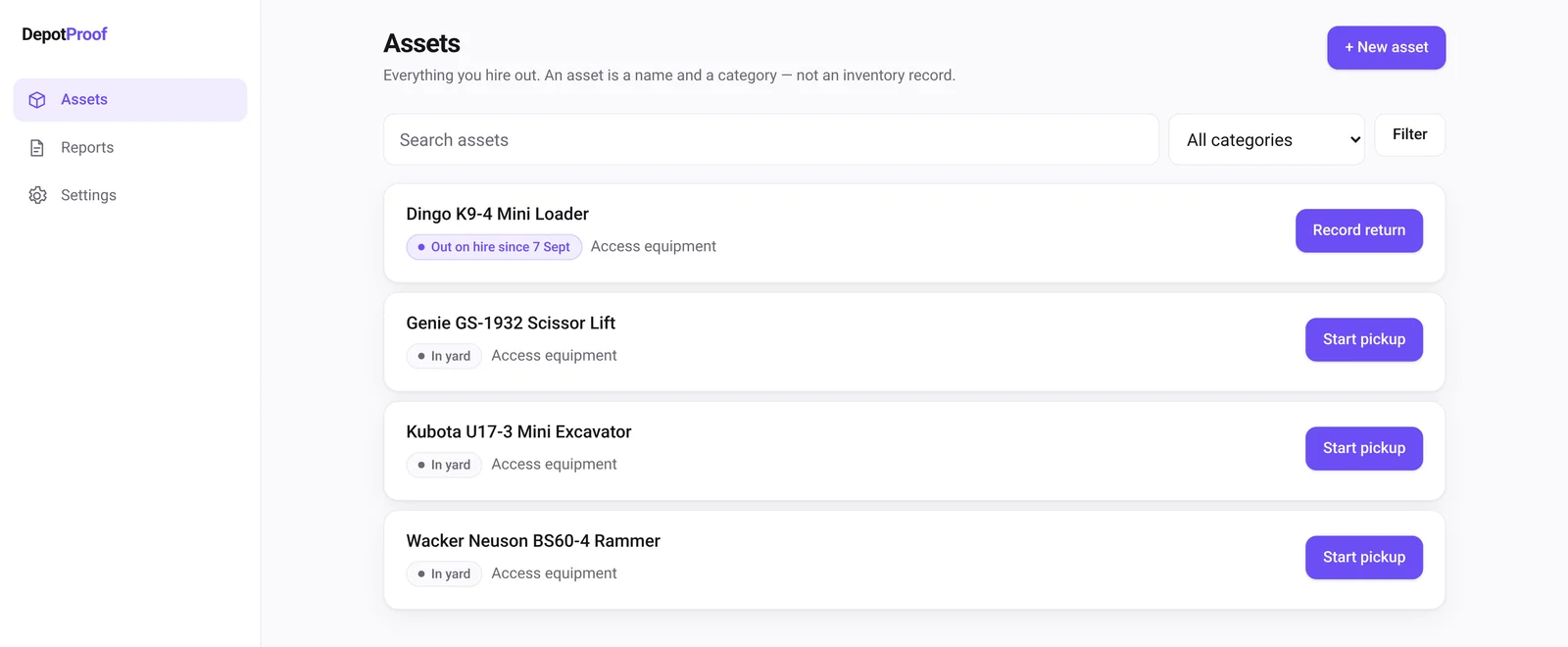
The yard, on one screen.
Every machine reads as in the yard or out on hire, with the date it went out. The button follows the state: a machine that is out offers the return and nothing else.
That is the visible half of the duplicate guard. The other half is the server, which refuses a second pickup on a machine already out even if someone reaches the screen from a stale tab.
The checklists your staff are given.
Every new account starts with these 5, one per equipment category. They are printed here straight from the code that creates them, so this is the wording your staff will read on the screen. Edit any of them, or add your own category, under Settings.
Excavator / Plant
7 shots, in this order
- 01Front
- 02Left side
- 03Right side
- 04Rear
- 05Hour meter
- 06Tracks / tyres
- 07Existing damage close-up
Vehicle / Trailer
7 shots, in this order
- 01Front
- 02Driver side
- 03Passenger side
- 04Rear
- 05Odometer
- 06Fuel gauge
- 07Existing damage close-up
Power tool
5 shots, in this order
- 01Full tool
- 02Serial plate
- 03Cutting head / blade
- 04Cable and plug
- 05Existing damage close-up
Access equipment
5 shots, in this order
- 01Full unit
- 02Platform
- 03Controls
- 04Hour meter
- 05Existing damage close-up
General equipment
4 shots, in this order
- 01Front
- 02Left side
- 03Right side
- 04Existing damage close-up
Built for the yard, not the office.
Keeps working when the signal drops
Every photo and signature is written to the phone as it is taken, and stays there until the app is next open in range. That is when it uploads. Finish the run and it will land; one left half-done waits on the phone until someone finishes it.
One prompt at a time
The screen names a single angle, shows one large camera button, and will not move on until that shot is taken or move past the last one until every shot is. There is nothing for a staff member to remember.
Sits beside your system
No migration, no switching. Keep your spreadsheet or software exactly as it is. This is the evidence layer beside it.
Built for a dispute
Once the machine is back, the PDF sets the two runs side by side with both signature pairs and a timestamp on every frame. It gives the location each handover was started when the phone can supply one, and prints “Not recorded” when it cannot. It is designed to be read by someone who was not there.
Unlimited users
One flat price per depot. Add every counter hand and yard hand you have without watching a per-seat meter.
Installs to the home screen
It is a web app, so there is no app store, no IT ticket, and no second device to manage. It works on whatever phone is at the counter.
Not for you if…
Better you find this out now than after you have paid for a month.
- You need bookings, availability or a rental calendar. DepotProof records condition, nothing else.
- You need invoicing, deposits or payment handling. It does none of them.
- You want maintenance schedules or compliance reminders. Not in this version.
- You are looking for a full rental platform to replace what you have. This sits alongside it.
- Your staff have no smartphone or tablet at the counter. There is no paper mode.
- Your yard has no signal at all and the app has never been opened on that phone. A handover already under way keeps capturing without one, but the first load needs a connection, and so does the upload afterwards.
One price. Every user.
Per-seat pricing punishes you for having staff. DepotProof charges per depot, so add the whole counter and the whole yard without thinking about it.
See full pricingPer depot, per month
A$29
In Australian dollars. Any tax is worked out at the checkout.
- Unlimited users
- Unlimited handovers
- Offline once a handover is under way
- Side-by-side PDF reports
- Email the PDF to the renter
- Custom checklists per category
Questions
Do I have to replace my current system?
No. DepotProof does one job, the condition record at handover. It sits alongside whatever you use for bookings and invoicing, and you keep both.
What happens if I lose signal mid-handover?
Everything from the photo checklist onward is written to the phone as it is captured, so the run finishes without a bar of signal. It uploads the next time somebody has the app open in range. Two things to know: finish the run, because a handover left half-done sits on the phone until it is finished; and until it uploads it exists only on that phone, so clearing the browser's data or losing the phone loses it.
What happens if I stop paying?
A failed card does not cut you off. While the payment is being retried nothing is blocked. When the subscription actually ends, new handovers are. Every report you have already captured stays readable, downloadable and emailable, and a handover already started on a phone can still be finished and synced. We do not hold your evidence hostage.
Where are my photos stored?
In Linode Object Storage, in an Australian region, Melbourne on our production configuration. The bucket is private and nothing in it is readable from the open web: the server fetches the photos itself and builds them into the PDF, which is delivered over your signed-in session.
Can the renter get a copy?
Yes, when you send it. Save the renter's email when you start the handover, then tap Email on that hire in the reports list and the PDF goes to them, and to your company address if you have set one. It is a deliberate tap, not an automatic send.
Can I find an old report months later?
Search by renter, by machine, by date range, or show only the hires with damage flagged. A search returns the 200 most recent matching hires, so narrow the dates to reach further back than that.
Is there a contract?
No contract and no setup fee. It is month to month, and you cancel from the billing screen, which opens the billing portal our payment provider runs.